
Cloudflare Workers testing with Jest, Wrangler and CircleCI
A couple of years ago I wrote a tutorial explaining (opens in new tab) a way to automate and test a Cloudflare Worker using Jest, Wrangler and Travis. Since then, a few things have changed and as such, I decided to update my code to reflect some of the new changes.
Also, Travis CI changed their pricing structure (opens in new tab), including how open-source repositories can use their service. Recently, after reviewing a few of the alternatives, I decided to test CircleCI (opens in new tab) and their Free plan that works well with the kind of tutorial code I write 😁.
⚠️ If you want to go and look directly at the code example, feel free to head to the repository (which has been updated with the latest changes): https://github.com/Vortexmind/worker-integrated-test (opens in new tab)
Here is the link to the diff (opens in new tab) from the previous version of the code.
In the next sections, I will comment on some of the changes I’ve made, for those that are interested in the details.
Wrangler 2.0
Wrangler (opens in new tab) is the command line tool that can be used to build and manage Cloudflare Developer products within the Workers ecosystem. At the time of writing my original article, I was using Wrangler v1 (opens in new tab), which is now deprecated, so it makes sense to update.
One of the interesting features added to the new version is the inclusion of Miniflare (opens in new tab), which greatly enhances the developer experience in relation to local development and testing. Miniflare is now transparently integrated into Wrangler 2.0.
npm test script
My approach to this part is still the same as before. I am using concurrently (opens in new tab) and wait-on (opens in new tab) to run my built script in the local environment and expose the required HTTP endpoints. Once I check that the endpoints are up with wait-on, I run my Jest tests. I like the fact that I am testing against the real endpoints (running locally on the test environment) and these are not mocked calls.
I did encounter a problem when running my script, as Jest would intermittently terminate with a Segmentation Fault. Eventually, I decided to roll back the node-fetch (opens in new tab) module I use in the tests to its pre-ESM version (2.x rather than 3.x). In this way, I was able to run Jest without the -experimental-vm-modules flag which caused the segfaults to go away 😅.
CircleCI
The last part was to move my CI pipeline to CircleCI (opens in new tab). I found this process pretty straightforward and the documentation was really good. I opted for using directly the CircleCI workflow definition and might review moving to Github Actions (opens in new tab) in the future. Here is my workflow.
version: 2.1

orbs:
  node: circleci/node@5.1.0
  codecov: codecov/codecov@3.2.4

jobs:
  build_and_test:
    executor: node/default
    steps:
      - checkout
      - node/install-packages:
          pkg-manager: npm
      - run:
          command: npm install wrangler
          name: Install Wrangler
      - run:
          command: npm run test
          name: Run tests
          environment:
            JEST_JUNIT_OUTPUT_DIR: ./reports/
      - codecov/upload
      - store_test_results:
          path: ./reports

workflows:
  test_my_app:
    jobs:
      - build_and_test
.circleci/config.yml (opens in new tab)
To summarise:
- At the bottom, we define a
test_my_appworkflow, which includes abuild_and_testjob. - I declare a couple of orbs at the top, which are just reusable packages that speed up the definition of the steps in my job.
- The steps are self-explanatory. We check out the code, install the packages, install Wrangler, and then run the tests.
- We invoke the Codecov orb step to upload the coverage results from Jest so that we have these updated
- Finally, we store the test results for later visualization.
Once we commit our changes, we can see a report of the build and test process (opens in new tab) on the project page on CircleCI.
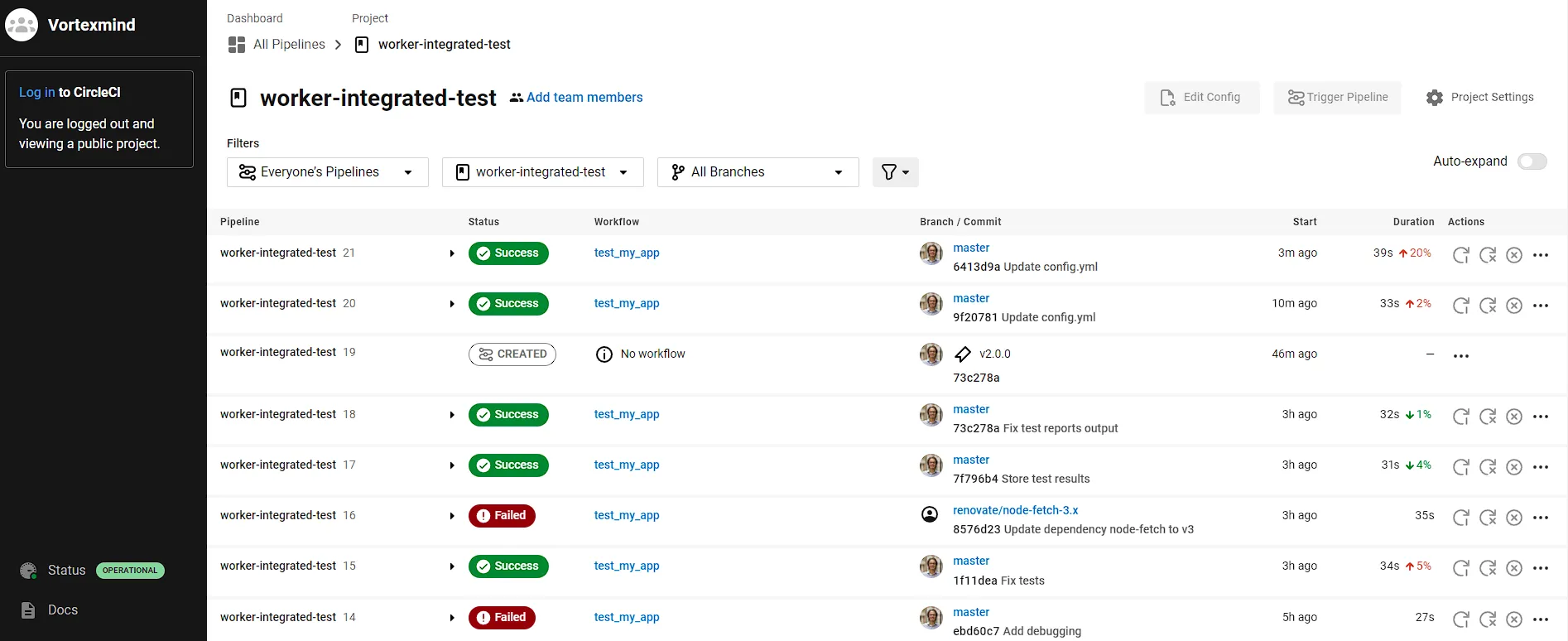
CircleCI Dashboard for my tutorial project (including all the broken builds 😭)
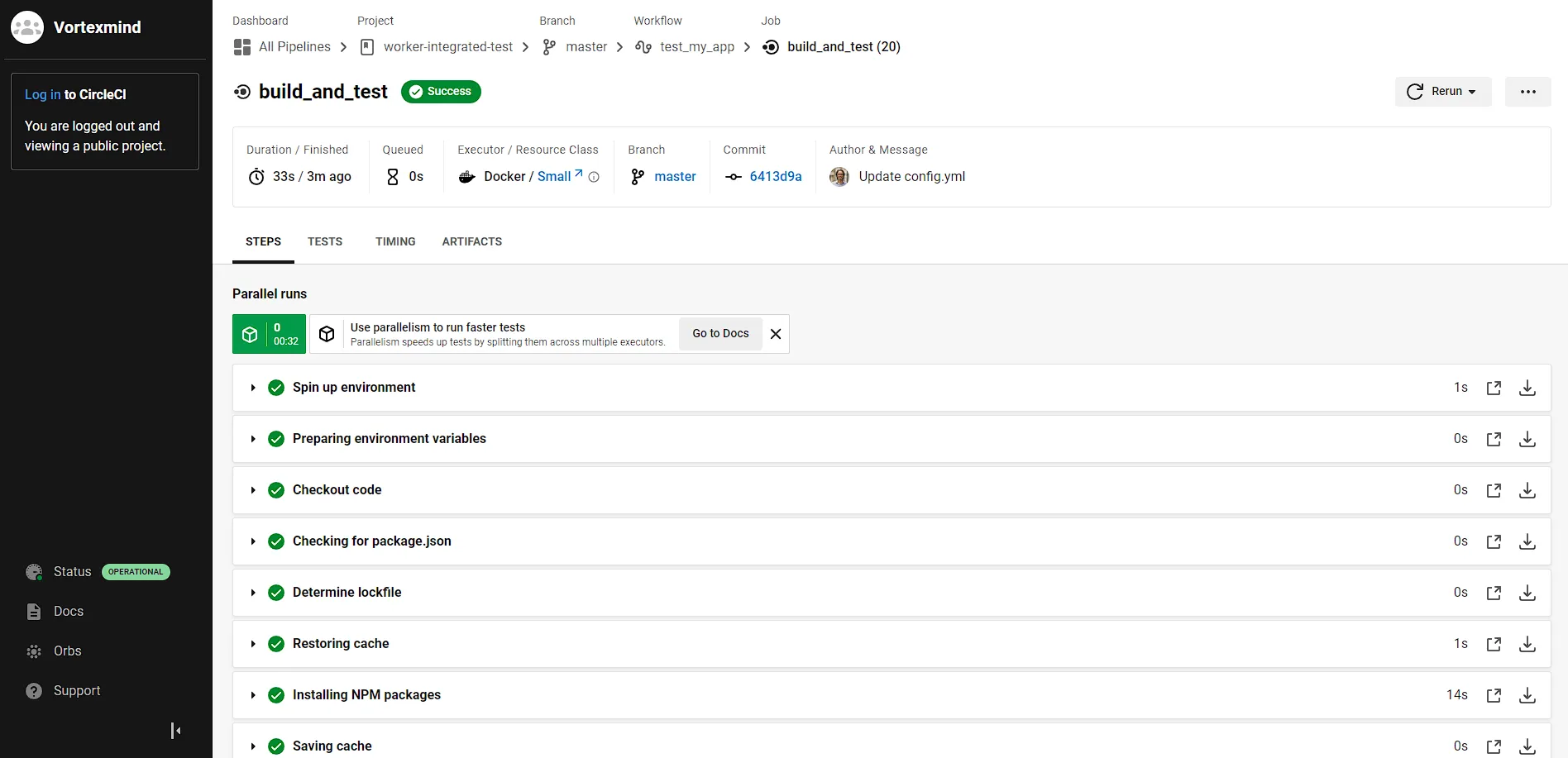
The details of one particular workflow execution
That’s it! If you have any advice or have a better way of doing this, I am all ears, leave your feedback in the comments section below. Thanks for reading.